How to Use the Teacher Planner & Gradebook, Step by Step
Download the free Lite file, open it in Excel or Google Sheets, and type students plus raw scores into the Gradebook sheet. Its 51 formula cells compute weighted averages and letter grades automatically. Pro adds attendance, a schedule, lesson plans and a dashboard.
Updated · By Pintergrab
Lite is free to download, no sign-up. Pro is sold on Lava.top.
Steps
Download the free Lite file, teacher-lite-en.xlsx, with the button above.
Open it in Excel, or use File, Import, Upload in Google Sheets.
Read the Start Here tab, then open the Scale tab to check grade cutoffs.
Open the Gradebook tab and replace the placeholder student names.
Type raw homework, quiz and test scores for your first week.
Check the weights at the top — Homework 0.2, Quizzes 0.3, Tests 0.5 — and adjust if needed.
Get Pro for $5 to add attendance, schedule, lesson plans and a dashboard.
Step 1: Get the file
Download the free Lite file, teacher-lite-en.xlsx, with the button above. It is 9 KB and has 3 tabs: Start Here, Scale and Gradebook.
Open it in Excel, or in Google Sheets with File, then Import, then Upload.
Step 2: Set up the Gradebook
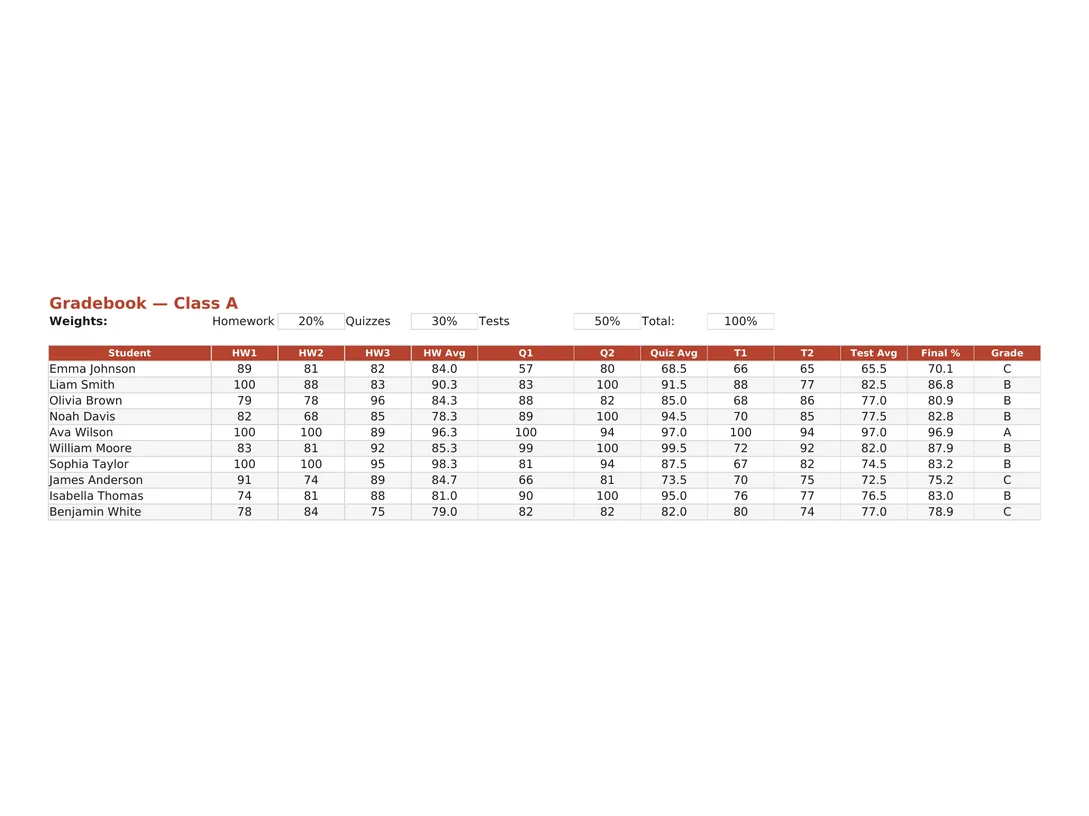
Open the Gradebook tab. The header reads "Gradebook — Class A" with Weights at the top: Homework 0.2, Quizzes 0.3, Tests 0.5.
- Replace the placeholder students with your class list.
- Type raw scores for homework, quizzes and tests.
- Leave the calculated columns alone — the sheet has 51 formula cells that compute each student's category average, weighted final grade and letter grade.
You can change the weights at any time. The math updates itself. The letter grades come from the Scale tab, which starts at 0 for F, 60 for D and 70 for C.
Step 3: Fill in your first week
Type this week's scores into the matching columns. As you enter numbers, each student's averages and final grade update instantly. That is the whole workflow: you enter raw scores, the sheet does the rest.
Step 4: Go Pro for more
Pro costs $5, one payment, and grows the file to 10 tabs and 22 KB:
- Two gradebooks (Class A and Class B) with the same weighted setup
- Attendance sheets with P/A/L dropdowns and 10 formula cells each, tracking a present-rate per student
- A weekly Schedule and Lesson Plans grid with class dropdowns
- A performance dashboard built on 14 formulas, covering average grade, attendance and low performers across classes
Lite covers one class. Pro covers multiple classes plus attendance, planning and reporting.
In short
The Teacher Planner & Gradebook is a spreadsheet template for Excel and Google Sheets. The free Lite file, teacher-lite-en.xlsx (9 KB), has 3 tabs: Start Here, Scale and Gradebook. The Gradebook sheet holds 51 formula cells that calculate category averages, the weighted final grade and the letter grade from the Scale sheet, whose lookup starts at 0 for F, 60 for D and 70 for C. Weights sit at the top of the sheet — Homework 0.2, Quizzes 0.3, Tests 0.5 — and you can change them any time. The Pro version costs $5 and expands the file to 10 tabs with two gradebooks, attendance sheets with P/A/L dropdowns and 10 formulas each, a schedule, lesson plans and a performance dashboard built from 14 formulas.
Questions people ask
Does the Teacher Planner & Gradebook work in Google Sheets?
Yes. The file is .xlsx, so it opens in Excel or Google Sheets. In Google Sheets use File, then Import, then Upload. All 51 Gradebook formulas carry over.
What comes in the free Lite download?
The Lite file teacher-lite-en.xlsx has 3 tabs: Start Here, Scale and Gradebook. The Gradebook sheet includes 51 formula cells for weighted averages, final grades and letter grades for one class.
What does the Pro version add?
Pro expands to 10 tabs: two gradebooks, attendance sheets with P/A/L dropdowns, a weekly schedule, lesson plans, and a performance dashboard. It costs $5 as a one-time payment.
Do I need to write any formulas myself?
No. Every calculation is prebuilt — 51 formula cells in each gradebook, 10 per attendance sheet and 14 in the Pro dashboard. You only type students, scores and, in Pro, P/A/L marks.