Free Teacher Planner & Gradebook Template for Excel and Google Sheets
The free Lite version is a 9 KB Excel file with 3 tabs: a Start Here guide, a Scale sheet for letter grades, and a Gradebook with weighted categories that computes each student's final percent and letter grade. Pro adds 7 more tabs, including attendance and a dashboard, for $5.
Updated · By Pintergrab
Pro: $5 on Lava.top, one payment.
What the free Lite version contains
The free Lite file is teacher-lite-en.xlsx, 9 KB, with 3 tabs:
- Start Here — a short welcome page with setup steps and tips.
- Scale — the letter grade lookup: 0 = F, 60 = D, 70 = C, and so on. You can edit the cutoffs.
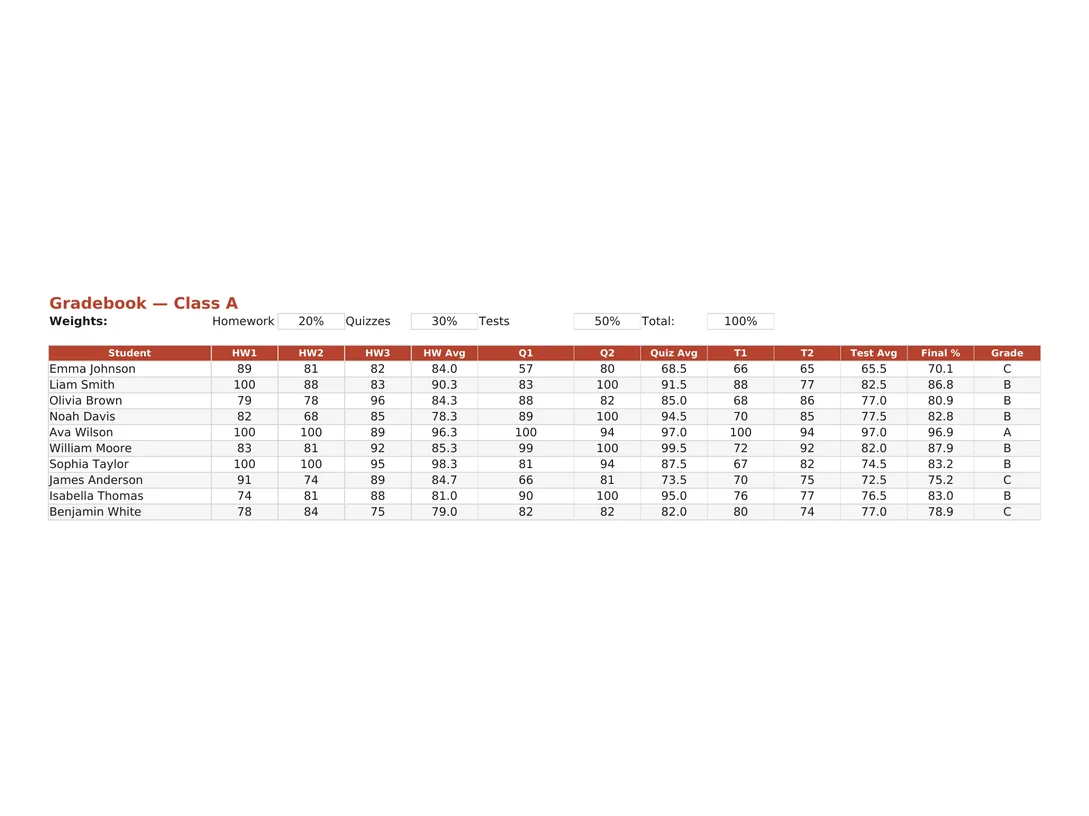
- Gradebook — Class A, with 51 formula cells. Type raw scores for homework, quizzes and tests. The sheet computes each category average, then the weighted final percent and the letter grade. A final grade below 60% turns red.
The default weights are Homework 0.2, Quizzes 0.3, Tests 0.5. Change them in the header at the top of the Gradebook sheet and every result recalculates. If your weights stop adding up to 100%, the cell turns red so you notice.
How to download and use it
- Download the free Lite file from this page.
- Open it in Excel, or in Google Sheets via File > Import > Upload.
- On the Gradebook sheet, replace the sample names with your students and type your own scores.
- Adjust the weights and the Scale cutoffs to match your grading policy.
Print areas and formulas are already set up, so there is nothing to build.
What Pro adds
Pro costs $5, one payment, and expands the file from 3 tabs to 10 tabs:
- Gradebook 1 and Gradebook 2 — gradebooks for two classes (Class A and Class B), each with the same weighted math.
- Attendance 1 and Attendance 2 — mark each student P, A or L per session. Each sheet has 10 formula cells, including a present-rate per student.
- Schedule — a weekly schedule, Monday to Friday, with a class dropdown in each period cell.
- Lesson Plans — a weekly grid with day, class, topic and homework columns, with class dropdowns.
- Dashboard — 14 formula cells: average grade and attendance per class, how many students are below 60% (per class and in total) and a grade count from A to F.
- Classes — lists your classes and subjects.
Lite is one gradebook for one class. Pro is the same gradebook plus attendance, a schedule, lesson plans and a cross-class dashboard.
In short
The free Lite file, teacher-lite-en.xlsx (9 KB), contains 3 tabs. The Gradebook sheet holds 51 formula cells that calculate each category average, the weighted final percent and the letter grade from the Scale sheet. Default weights are Homework 0.2, Quizzes 0.3 and Tests 0.5, and you can change them at the top of the sheet. The Pro file, teacher-pro-en.xlsx (22 KB), has 10 tabs. It adds Gradebook and Attendance sheets for two classes (Class A and Class B), a Schedule and a Lesson Plans sheet with class dropdowns, and a Dashboard with 14 formula cells: average grade and attendance per class, how many students are below 60% (per class and in total) and a grade count from A to F. Attendance marks are P, A or Late, and each Attendance sheet counts 10 formula cells, including a present-rate per student. Pro costs $5, one payment.
Questions people ask
Do I have to pay for the gradebook template?
No. The Lite version is free and includes the full weighted gradebook for one class, with 51 formula cells that compute category averages, the final percent and the letter grade. Pro costs $5, one payment, and adds attendance, schedule, lesson plans and a dashboard.
Can I change the letter grade cutoffs?
Yes. The Scale sheet maps minimum scores to letters, starting at 0 = F, 60 = D, 70 = C. Edit the numbers there and the Gradebook picks up the new letters automatically.
What do I type in the attendance sheet? (Pro)
Each session column takes P, A or L from a dropdown. The sheet counts marks with its 10 formula cells and shows a present-rate per student, plus averages on the Dashboard.
Does the template work in Google Sheets?
Yes. The file is a standard .xlsx, so you can open it in Excel or import it into Google Sheets with File > Import > Upload. The formulas run the same way in both.