How to Use the Family Budget Planner: From Download to First Week
Download the free Lite file from the page, open it in Excel or upload it to Google Sheets with File > Import, pick your categories on the Categories sheet, then type dates, types and amounts on the Jan sheet. The summary updates itself. Pro adds 17 tabs for $5.
Updated · By Pintergrab
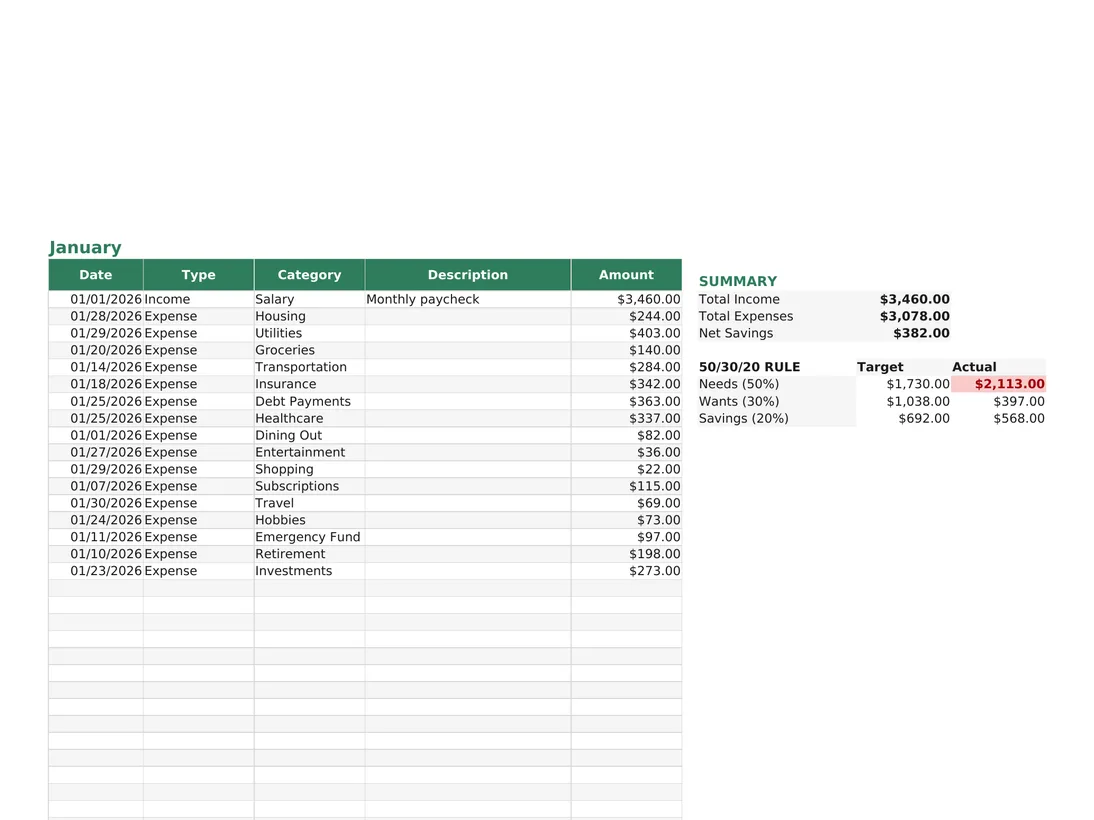
Lite is free to download, no sign-up. Pro is sold on Lava.top.
Steps
Download the free Lite file with the button above, or get Pro for $5.
Open the file in Excel, or use File > Import > Upload in Google Sheets.
Read the Start Here sheet, then open Categories to see the category list.
Go to the Jan sheet and enter Date, Type and Category from the dropdowns.
Add a Description and an Amount for each transaction in your first week.
Check the Summary box on the right — totals update as you type.
In Pro, continue on the other month sheets, plus Debts, Goals and Dashboard.
Step 1: Get the file
Download the free Lite file, budget-lite-en.xlsx (11 KB), with the button above. It has 3 sheets: Start Here, Categories and Jan. A dark version is also available. If you want all 12 months, the Debts sheet, the Goals sheet and the Dashboard, get Pro for $5 — one payment on Lava.top.
Step 2: Open it
Double-click the file to open it in Excel or LibreOffice Calc. For Google Sheets, start a new spreadsheet, choose File > Import > Upload, and pick the file. The header rows are frozen, so column labels stay visible while you scroll.
Step 3: Check the Categories sheet
Open the Categories tab. It lists each category with a Group and a Type, such as Salary (Income) or Freelance (Income). The Category dropdown on the month sheets reads from this list, so everything you enter here shows up there.
Step 4: Fill in your first week on the Jan sheet
Go to the Jan sheet. For each transaction, fill in:
- Date — for example, 1/5/2026 for the first week of January.
- Type — pick Income or Expense from the dropdown.
- Category — pick from the dropdown, which lists the Categories sheet items.
- Description — a short note like "groceries week 1".
- Amount — the number. Type income as positive.
Skip the Grp column — it is a hidden helper the formulas use. A week might look like: 1/5, Income, Salary, paycheck, 2400; 1/6, Expense, Groceries, weekly shop, 130; 1/8, Expense, Gas, fill-up, 45.
Step 5: Read the Summary
The Summary box sits to the right of the transaction table. The sheet's 49 formula cells total your income and expenses as you type — no formulas to write yourself. In Pro, over-budget spending shows red highlighting against the 50/30/20 split, and the Dashboard adds annual totals and a savings rate.
Step 6: Repeat and keep going
Enter transactions as they happen, a few rows at a time. In Pro, move to Feb through Dec the same way, list debts on the Debts sheet with balances, APR and minimum payments, and set targets on the Goals sheet, which counts down the months remaining.
In short
The Family Budget Planner is a budget spreadsheet for Excel and Google Sheets where you only type in numbers and the formulas do the rest. The free Lite file contains 3 sheets: Start Here, Categories and Jan. On the Jan sheet, the transaction table has dropdowns for Type (Income or Expense) and Category (pulling from Categories A2:A23), and 49 formula cells calculate the Summary box of totals. The Pro version costs $5 and expands the file to 17 tabs: 12 monthly sheets, a Debts sheet with a snowball planner covering balance, APR, minimum payment and a Priority column you number yourself, a Goals sheet tracking target amount, monthly contribution and months remaining, and a Dashboard with annual income, expenses, net savings and savings rate. Both versions come in light and dark mode.
Questions people ask
How many sheets are in the free Lite version?
Lite has 3 sheets: Start Here, Categories and Jan. You get one month of tracking with dropdowns and an automatic Summary. Pro has 17 tabs, including all 12 months, Debts, Goals and the Dashboard.
Do I have to write any formulas?
No. The Jan sheet already contains 49 formula cells that calculate the Summary totals. You only type dates, pick from the dropdowns, add descriptions and enter amounts.
Where do the category dropdowns come from?
They read from the Categories sheet, rows A2 through A23. The Type column on the month sheets offers just two choices: Income or Expense.
Can I use the planner in Google Sheets?
Yes. Open Google Sheets, choose File > Import, upload the .xlsx file, and it works there. The same file also opens in Excel and LibreOffice Calc.