Free Budget Spreadsheet for Google Sheets: 50/30/20, Debt Snowball, Dashboard
The fastest way to get a working budget spreadsheet for Google Sheets is to download the free Budget Planner template, open it in Google Sheets with File > Import, and start typing in your income and expenses on the first monthly tab. The sheet does the math from there: it splits your spending into the 50/30/20 rule automatically, highlights any category running over budget in red, and (in the Pro version) tracks a debt snowball payoff plan and savings goals with a months-remaining countdown.
What's actually inside the free version
The free Lite file gives you one month with income and expense rows already grouped by category, dropdown lists so you are not retyping "Groceries" a slightly different way every time, and a frozen header row so the sheet stays readable once you scroll past row 40. It is enough to see whether the layout fits how you actually spend money before you commit to anything else.
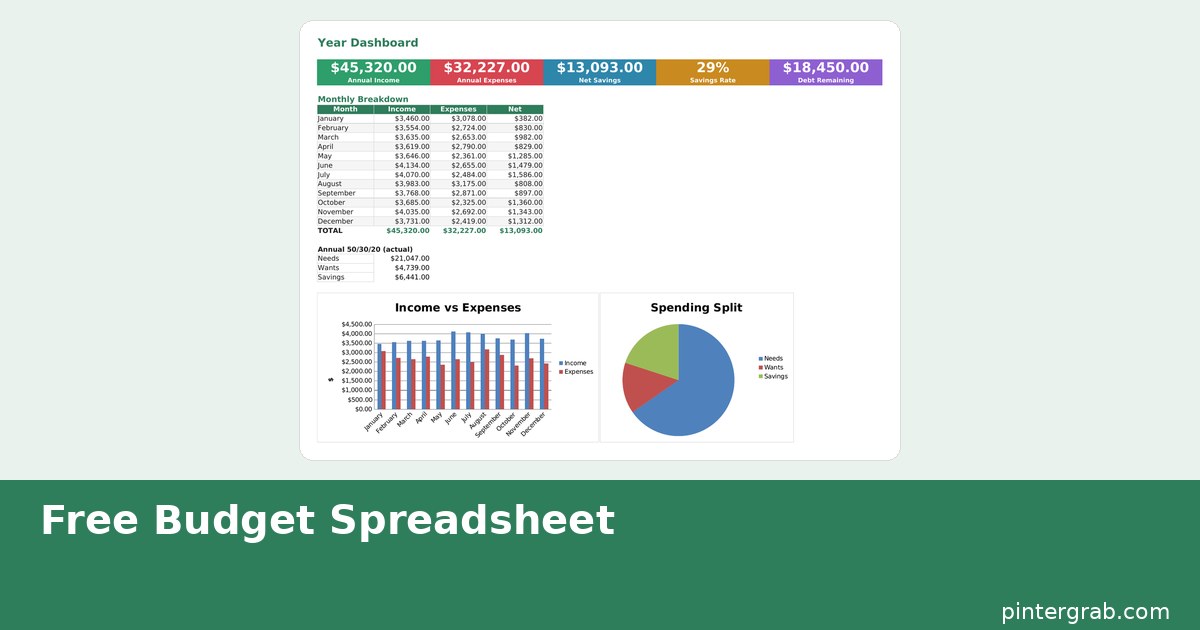
The Pro version is the same layout carried across all 12 months, plus a year dashboard with two charts (income vs. expenses by month, and a spending-split pie chart), the debt snowball planner, and a savings goals tab. Both versions come in light and dark themes, and in English or Russian, so the file works whether you live in Google Sheets or prefer LibreOffice Calc.
How the 50/30/20 split actually works here
You are not manually calculating anything. Every expense you log gets tagged with a type — need, want, or saving — through the same dropdown you use to pick the category, and a hidden helper column sums those totals per month. The dashboard turns that into a percentage of your income automatically, so if you are supposed to be at 50% needs but you are sitting at 61%, the sheet shows it in the monthly breakdown without you doing any arithmetic.
The 50/30/20 rule itself is a starting point, not gospel: it assumes take-home pay, and it works better in cities with moderate rent than in places where housing alone eats 45% of income. If your needs number is permanently high, that is useful information about your situation, not a sign the spreadsheet is broken.
The debt snowball planner (Pro)
The debt snowball method pays off your smallest balance first regardless of interest rate, then rolls that payment into the next-smallest debt once the first is cleared — the psychological win of closing an account outweighs the few extra dollars in interest you would save with the mathematically "correct" avalanche method for most people who stick with it longer this way. The Pro sheet lists each debt with its balance, minimum payment, and priority order, then calculates how much extra you can throw at the top-priority debt once you have entered your monthly total. You do not need a separate app for this; it lives on its own tab next to the budget so the numbers stay in sync.
Savings goals with a countdown (Pro)
The goals tab takes a target amount, your current saved balance, and how much you can set aside per month, then works out how many months are left until you hit the target — useful for anything from an emergency fund to a vacation, since it recalculates the moment you update either number.
Google Sheets vs. Excel vs. a budgeting app
| Option | Cost | Setup time | Customization | Bank sync |
|---|---|---|---|---|
| This spreadsheet (Sheets/Excel) | Free Lite, $3.99 Pro | 2–5 minutes | Full — every formula is editable | Manual entry |
| Budgeting app (YNAB, Monarch, etc.) | $8–15/month | 15–30 minutes | Limited to app's categories | Automatic |
| Blank spreadsheet you build yourself | Free | 2–4 hours | Full | Manual entry |
| Pen-and-paper budget | Free | 10 minutes | Full, but no automatic math | None |
The honest tradeoff: apps sync with your bank so you type in less, but you are locked into their category structure and monthly fee. A spreadsheet asks you to enter numbers yourself — five minutes a week if you do it after each paycheck — in exchange for owning the file, paying once, and being able to change literally anything about how it is organized.
Setting it up in Google Sheets, step by step
- Download the file from the Budget Planner page (Free Lite button, no account needed).
- In Google Sheets, go to File > Import > Upload, choose the downloaded .xlsx, and select "Replace spreadsheet" when prompted, or "Insert new sheet(s)" if you want to keep it inside an existing file.
- Open the Categories sheet and adjust the list to match how you actually spend — add "Pet care" or "Subscriptions" if the defaults do not fit.
- Enter your income at the top of the current month's tab.
- Log expenses as they happen, picking a category and a need/want/saving type from the dropdowns in each row.
- Check the 50/30/20 section at the top of the tab; anything highlighted red is over that category's share of income.
Common mistakes people make with a budget spreadsheet
- Editing the header row. Column labels and the hidden "Grp" helper column are what the formulas key off of — rename them and totals stop calculating correctly. Everything below the header is safe to change.
- Logging expenses in a lump sum instead of by category. One "misc" line for $600 tells you nothing next month. Break it down even roughly; the categorization is what makes the 50/30/20 view useful.
- Giving up after one bad month. A budget spreadsheet is not a diet — it is a record. A month where needs hit 70% because of a car repair is data, not a failure; the point is seeing the pattern over several months.
- Forgetting irregular income or expenses. Annual insurance premiums, quarterly taxes, or freelance income that varies month to month throw off a simple monthly view. Add an "annual costs ÷ 12" line to your needs category so it is not a surprise in the month it is actually due.
FAQ
Is the budget spreadsheet really free?
The Lite version is free with no account or email required — one month, no dashboard, no debt tracker. The Pro version ($3.99) unlocks all 12 months, the year dashboard, debt snowball planner, and savings goals.
Does it work in Excel, or only Google Sheets?
Both. The file is a standard .xlsx that opens natively in Excel and LibreOffice Calc, and imports cleanly into Google Sheets through File > Import.
Will I break the formulas if I customize it?
Not if you leave the header row and the hidden helper column alone. Categories, colors, and row order below that are all safe to edit.
Can I add my own spending categories?
Yes — add them on the Categories tab and they appear in every dropdown automatically, no formula editing required.
Built with AI assistance, every formula hand-checked.
Once your income and expenses are logged, the Weekly Meal Planner guide is a natural next step — groceries are usually the biggest "wants vs. needs" gray area in any budget. If you are a landlord tracking rental income separately from your household budget, the Rental Property Tracker guide keeps that math out of your personal sheet entirely.
Frequently asked questions
Is the budget spreadsheet really free?
The Lite version is free with no account or email required — one month, no dashboard, no debt tracker. The Pro version ($3.99) unlocks all 12 months, the year dashboard, debt snowball planner, and savings goals.
Does it work in Excel, or only Google Sheets?
Both. The file is a standard .xlsx that opens natively in Excel and LibreOffice Calc, and imports cleanly into Google Sheets through File > Import.
Will I break the formulas if I customize it?
Not if you leave the header row and the hidden helper column alone. Categories, colors, and row order below that are all safe to edit.
Can I add my own spending categories?
Yes — add them on the Categories tab and they appear in every dropdown automatically, no formula editing required.