Wedding Planning Spreadsheet: Guest List, Seating Chart, Budget
A wedding planning spreadsheet keeps your guest list, seating chart, and budget in one file that talks to itself — the seating chart pulls names straight from the guest list instead of you retyping them, and it flags a guest assigned to two tables before you find out at the reception. Download the free Lite version (guest list plus one bridal shower game) or the full Wedding Spreadsheet Kit to get seating, budget, vendor tracking, a day-of timeline, and a countdown dashboard in the same workbook.
What's inside the full kit
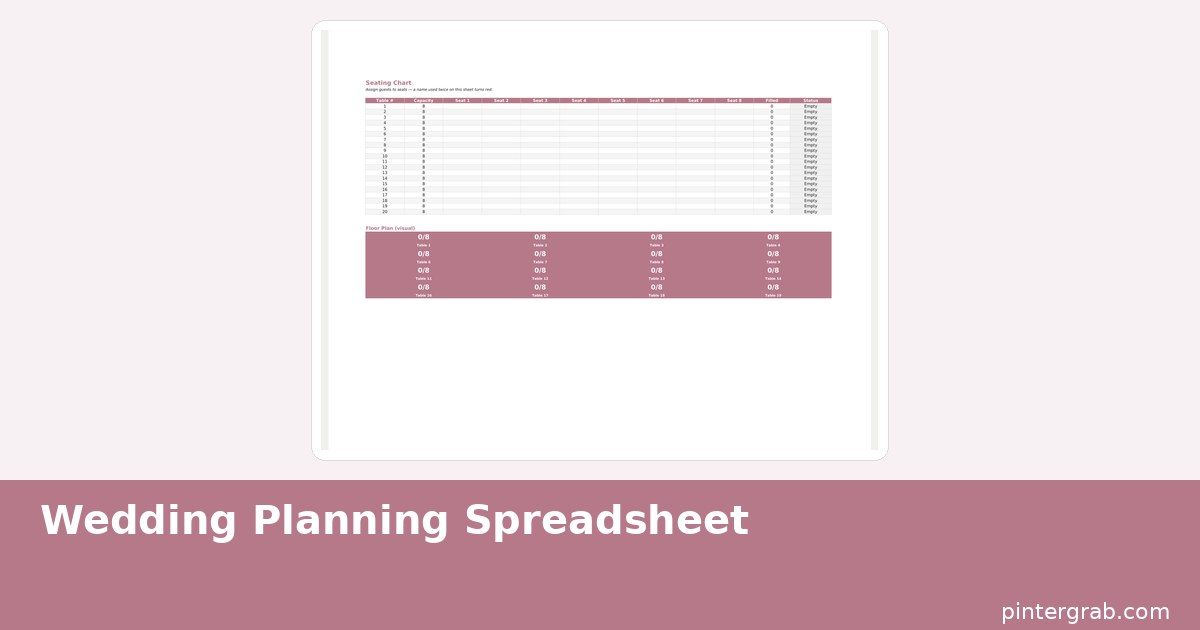
Six working tabs: a Guest List (side, RSVP status, meal choice, plus-one, gift, thank-you-sent, with running counters and a dietary-needs summary calculated for you), a Seating Chart (20 tables of 8 seats, with a visual floor-plan view alongside the grid), a Budget tab (planned vs. actual vs. paid, percent of total budget used, a payment-schedule chart), a Vendor Tracker, a Day-Of Timeline, and a Dashboard that counts down the days to the wedding and shows confirmed guests, budget percentage, and payment percentage at a glance, each with its own chart.
How the seating chart catches mistakes automatically
Every seat in the 20-table grid pulls its guest name from a dropdown tied directly to your Guest List, so there is no separate list to keep in sync by hand. Two safety checks run in the background: conditional formatting turns a cell red if the same guest name shows up in more than one seat across the entire chart (a COUNTIF check across all 160 seats), and it separately flags any guest on your RSVP'd-yes list who has not been assigned a seat at all. Both are the kind of error that is invisible on a printed seating chart until someone is standing at an empty seat, or two people are fighting over one.
Budget: planned vs. actual, not just a running total
Each line item — venue, catering, photography, flowers, and so on — gets a planned amount and an actual amount side by side, so you see where you are over or under before the total surprises you. A separate column tracks what has actually been paid vs. what is still owed, with a payment-schedule chart on the Dashboard so you can see upcoming due dates without digging through vendor contracts.
Vendor Tracker and Day-Of Timeline, in practice
The Vendor Tracker holds contact info, contract totals, deposit paid, and balance due for every vendor — photographer, caterer, florist, DJ — in one place instead of scattered across email threads and a folder of PDFs, which matters most in the last month when you are confirming final headcounts and payment due dates with five people at once. The Day-Of Timeline breaks the wedding day into time-blocked entries (hair and makeup start, first look, ceremony, cocktail hour, reception entrances) that you can hand directly to your day-of coordinator or wedding party so nobody is asking "what time does X happen" over text during the event itself.
Wedding spreadsheet vs. a wedding-planning app vs. paper
| Option | Cost | Seating error checks | Works offline | Data stays yours |
|---|---|---|---|---|
| This spreadsheet | Free Lite, $5.99 Pro | Automatic (duplicate + unassigned) | Yes | Yes — it's your file |
| Wedding planning app | Often free with paid upsells (guest tracking, day-of tools) | Varies by app | Usually requires login | Locked to the platform |
| Paper binder + printed lists | Free–$20 | None — manual cross-checking | Yes | Yes, but easy to lose a page |
Setting up your guest list, step by step
- Download the file from the Wedding Spreadsheet Kit page and open it in Excel, LibreOffice Calc, or import into Google Sheets.
- Add every guest to the Guest List tab with their side (yours, partner's, both) and initial RSVP status set to "Invited."
- As responses come in, update RSVP to Yes or No — the counters at the top of the tab update automatically.
- Move to the Seating Chart tab once RSVPs settle; assign guests to tables using the dropdown, which only lists names already marked "Yes" on the Guest List.
- Watch for any red-highlighted cells — that means a duplicate seating or an unassigned confirmed guest that needs fixing before you finalize the chart.
Bonus: bridal shower games included in Pro
The Pro kit also includes a PDF bonus with eight bridal shower games — a 12-card bingo set, He Said/She Said, a word scramble, bridal trivia, the Purse Game, advice cards, wedding trivia, and Finish the Line — plus printable seating and menu cards, all in both US Letter and A4, in Ice Blue or Blush color themes. They are a separate print-and-play addition, not something you need the spreadsheet skills for at all.
Sharing the file with your partner and wedding party
Because it is a standard spreadsheet rather than an app tied to one account, sharing it is just sharing a file: upload it to a shared Google Drive folder (after importing to Sheets) or email the Excel file back and forth with a clear naming convention like "wedding-plan-v3.xlsx" if you are not using Sheets. Give your maid of honor or best man edit access to just the Vendor Tracker and Day-Of Timeline tabs if you want help coordinating logistics without handing over budget visibility — Google Sheets supports protecting individual tabs while leaving others open.
FAQ
What's the difference between the free Lite version and Pro?
Lite includes the Guest List and one bridal shower game. Pro adds the Seating Chart with error checking, Budget, Vendor Tracker, Day-Of Timeline, Dashboard, and all eight shower games plus printable seating and menu cards.
Does the seating chart really catch a guest seated twice?
Yes — conditional formatting checks every seat across all 20 tables and highlights a name in red if it appears more than once, so the error is visible before you print the final chart.
Can I use this for a smaller wedding with fewer than 160 guests?
Yes, the 20-table, 8-seat grid is a maximum, not a requirement — leave unused tables blank or delete extra rows if your guest count is smaller.
Is there a version in a currency other than US dollars?
The Budget tab uses plain number formatting rather than a hardcoded currency symbol, so you can reformat the cells to your local currency without breaking any formulas.
Built with AI assistance, every formula hand-checked.
Managing the household budget alongside wedding costs? The Free Budget Spreadsheet guide keeps everyday spending separate from one-time wedding expenses. Feeding guests at a shower or rehearsal dinner and need a plan for it? The Weekly Meal Planner guide works the same auto-grocery-list way for smaller gatherings too.
Frequently asked questions
What's the difference between the free Lite version and Pro?
Lite includes the Guest List and one bridal shower game. Pro adds the Seating Chart with error checking, Budget, Vendor Tracker, Day-Of Timeline, Dashboard, and all eight shower games plus printable seating and menu cards.
Does the seating chart really catch a guest seated twice?
Yes — conditional formatting checks every seat across all 20 tables and highlights a name in red if it appears more than once, so the error is visible before you print the final chart.
Can I use this for a smaller wedding with fewer than 160 guests?
Yes, the 20-table, 8-seat grid is a maximum, not a requirement — leave unused tables blank or delete extra rows if your guest count is smaller.
Is there a version in a currency other than US dollars?
The Budget tab uses plain number formatting rather than a hardcoded currency symbol, so you can reformat the cells to your local currency without breaking any formulas.