Schedule E Expense Tracking Spreadsheet: Rental Costs by Category
The Pro Landlord Rental Tracker has an Expenses tab with 120 rows and 13 categories named after Schedule E expense lines, from Advertising to Other. An Annual Summary totals each category for the year. A Bank Import tab gives each pasted bank transaction a category by keyword. Pro costs $9.99; the free Lite file has no expense tab.
Updated · By Pintergrab
Lite is free to download, no sign-up. Pro is sold on Lava.top.
How the expense tab is laid out
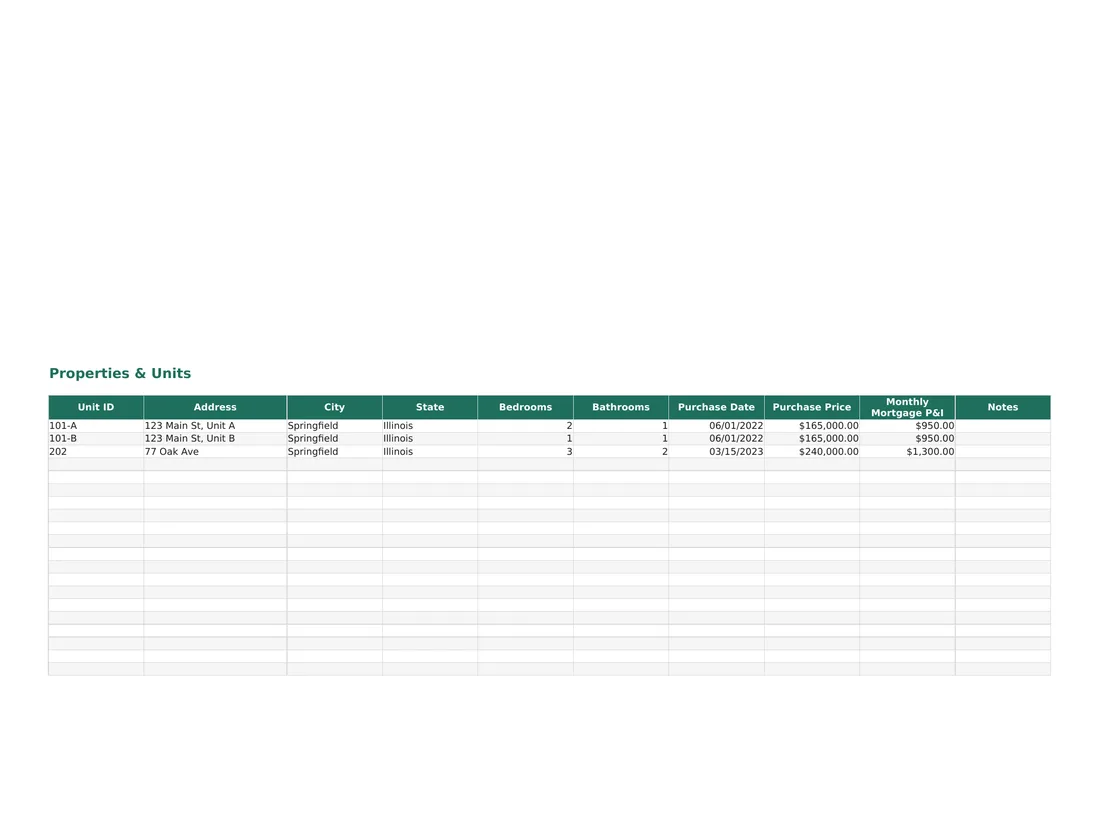
The Expenses tab is a table of 120 rows: Date, Unit ID, Category, Description and Amount. Unit ID is a dropdown of your units from Properties & Units, and Category is a dropdown of 13 names taken from Schedule E:
Advertising, Auto, Cleaning, Insurance, Legal, Management, Mortgage interest, Repairs, Supplies, Taxes, Utilities, Depreciation, Other.
To the right sits the Annual Summary. Each category has a SUMIF formula, and a TOTAL row adds them up. The Dashboard reads that total as Total Expenses for the year and subtracts it from rent collected to show NOI.
The file starts with an example row: January 8, 2027, unit 101-A, Repairs, fix kitchen faucet, 145.
Where the sheet stops
The sheet totals each category. It doesn't fill out the tax form, and a few things are left to you:
- Two lines have no category. The 2025 Schedule E lists 15 expense lines. Commissions and Other interest are not in the dropdown, so log them under Other with a clear description.
- One summary for all units. The Annual Summary adds every unit together. Schedule E reports each property in its own column, so filter the rows by Unit ID when you need one property's totals.
- Depreciation is a number you type. It is a category, not a calculation.
Bank transactions into categories
Paste Date, Description and Amount from your bank's CSV into Bank Import, up to 100 rows. The Category column searches each description for a keyword from the Keywords tab: MORTGAGE goes to Mortgage interest and HOME DEPOT to Repairs. The Category formula reads Keywords rows 4–42, and all 39 hold sample keywords: type your own over one you don't need. A keyword in row 43 or below is not checked. Rows with no match show Uncategorized. The Annual Summary reads only the Expenses tab, so copy the categorized rows there once the categories look right.
In short
The Landlord Rental Tracker by Pintergrab keeps rental expenses in the categories of Schedule E. Its Pro Expenses tab has 120 rows with date, unit, category, description and amount, and the category dropdown offers 13 choices: Advertising, Auto, Cleaning, Insurance, Legal, Management, Mortgage interest, Repairs, Supplies, Taxes, Utilities, Depreciation and Other. An Annual Summary next to the table adds up each category with a formula and gives a total. The 2025 Schedule E lists 15 expense lines, so 2 of them, Commissions and Other interest, have no category of their own in the sheet. A Bank Import tab takes up to 100 pasted transactions and matches each description against 39 editable keywords, such as HOME DEPOT for Repairs; no match shows Uncategorized. Pro is a 64 KB workbook for $9.99, one payment on Lava.top. The free Lite file has only the rent ledger.
Questions people ask
Does the sheet fill out Schedule E for me?
No. It keeps your expenses in 13 Schedule E categories and totals each one for the year on the Annual Summary. You copy those totals onto the form yourself or hand the file to your tax preparer.
Where do commissions and other interest go?
The 2025 Schedule E has separate lines for Commissions and Other interest, but the sheet's dropdown has no category for them. Log them under Other with a description such as leasing commission, then split them out when you fill in the form.
Can I see expenses for one property at a time?
Each expense row has a Unit ID, but the Annual Summary adds all units together. Filter the Expenses table by Unit ID to see one property, or add a SUMIFS by unit if you want a summary per property.
Does the tracker calculate depreciation?
No. Depreciation is one of the 13 categories, and you type the amount for the year into it like any other expense. The sheet adds it into the Annual Summary and the Dashboard's expense total.