How to Use the Wedding Spreadsheet Kit: Guests, Seats, Budget
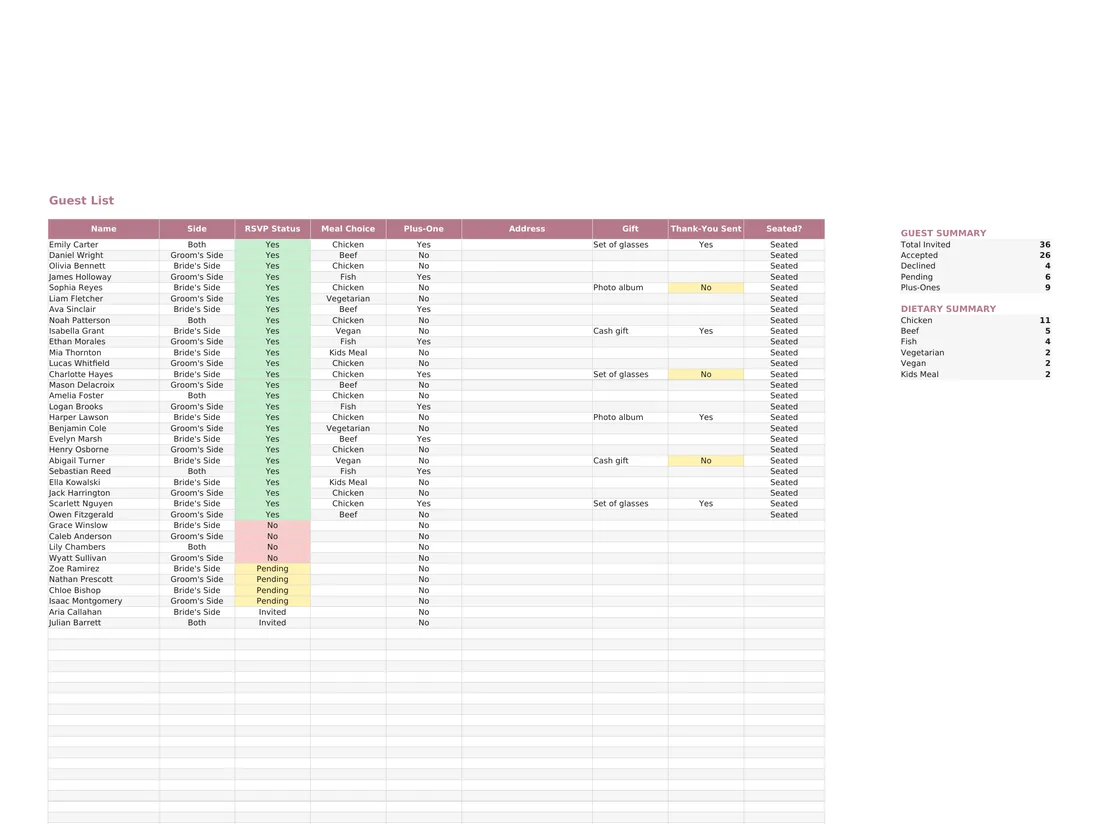
Start with the Guest List: one row per guest, with side, RSVP, meal and plus-one from dropdowns. In Pro, seat confirmed guests on the Seating Chart, set your total on the Budget tab, add vendors and set the wedding date on the Dashboard. The free Lite file has the 120-row Guest List; Pro is $5.99.
Updated · By Pintergrab
Lite is free to download, no sign-up. Pro is sold on Lava.top.
Steps
Download the free Lite workbook and game PDF with the button above, or get Pro for $5.99.
Open the .xlsx in Excel, or import it into Google Sheets with File > Import.
Add each guest on the Guest List and pick side, RSVP, meal and plus-one from the dropdowns.
(Pro) Seat guests with RSVP Yes on the Seating Chart; fix any name that turns red.
(Pro) Type your total budget, then fill in Actual and Paid for each category as bills arrive.
(Pro) Add vendors with deposits and due dates on the Vendor Tracker.
(Pro) Set the wedding date on the Dashboard and edit the Day-of Timeline.
Step 1: Build the guest list
Type one guest per row on the Guest List and pick Side, RSVP Status, Meal Choice and Plus-One from the dropdowns. Address, Gift and Thank-You Sent are typed. Start everyone at Invited and change the RSVP to Yes, No or Pending as answers come in. The Guest Summary and Dietary Summary on the right update with every change.
Keep the column headers as they are. The Start Here tab warns that the dropdowns and formulas are matched to their exact wording.
Step 2 (Pro): Seat the confirmed guests
On the Seating Chart, each of the 20 rows is a table with a Capacity of 8 and Seat 1 to Seat 8. Click a seat and pick a name. Filled counts the seats in use, and Status reads Empty, Open seats or Full. If you pick the same name twice, it turns red. Back on the Guest List, the Seated? column marks every guest with RSVP Yes who has no seat yet.
Step 3 (Pro): Set the budget and the vendors
Type your total at the top of the Budget tab; the file starts at 30,000. Each of the 16 categories has a % share, such as Venue at 28% and Catering & Bar at 20%, and Planned is that share of the total. As bills come in, type Actual and Paid; Due is Actual minus Paid. List each payment in the Payment Schedule with its date, amount and a Yes or No in Paid?.
On the Vendor Tracker, one row per vendor: category, contact, phone, email, total cost, deposit paid and due date. Balance Due is total cost minus deposit.
Step 4 (Pro): Set the date and plan the day
Type your wedding date on the Dashboard. It shows the days until the wedding, guests confirmed, budget used % (actual against planned) and paid % (paid against actual). The Day-of Timeline is a starter schedule to edit, from 8:00 AM hair and makeup to an 11:00 PM send-off.
In short
The Wedding Spreadsheet Kit by Pintergrab follows the order of its Start Here tab. First the Guest List: 120 rows, with dropdowns for side, RSVP status, meal choice and plus-one, and counters for accepted, declined, no reply yet and each of 6 meals. In Pro, the Seating Chart has 20 tables of 8 seats, and each seat is a dropdown of the names on the Guest List; a name used twice turns red, and the Guest List marks confirmed guests who are not seated. The Budget tab starts from a total of 30,000 and calculates each of 16 categories' planned amount from its % share, while Actual and Paid are typed in and Due is calculated. The Vendor Tracker shows each vendor's balance due, and the Dashboard counts the days to the wedding date you set. Lite is free and 12 KB. Pro is $5.99, one payment on Lava.top.
Questions people ask
What if a guest's name turns red on the seating chart?
Red means the name is in two seats on the Seating Chart. Find the second copy, clear that seat and pick another guest. The highlight disappears once each name appears only once across the 20 tables.
How does the Seated? column know who still needs a seat?
For every guest with RSVP Yes, it checks whether the name appears anywhere on the Seating Chart. If it doesn't, the column shows Not seated. Guests marked No or Pending stay blank, so the column lists only confirmed guests to place.
Can I change the budget percentages?
Yes. Type a new % share next to any of the 16 categories on the Budget tab, and Planned recalculates from your total. The TOTAL row adds the shares, so check that they still come to 100%.
What does Budget Used % on the Dashboard mean?
It divides the total of the Actual column by the total of the Planned column on the Budget tab. Paid % next to it divides what you have paid by the actual total, so you see both how much you spent and how much is settled.